Everything Wyrm Forge can do today, feature by feature: what it is for, where to find it, how to use it and what you will see in game. The site runs in your browser; the Windows app adds the in-game overlay.
Last updated: 25 October 2026 · Matches app v1.0.23
On the site and in the app
These features exist on both sides. Sign in with the same Wyrm Forge account on the site and in the app to find your builds everywhere.
Item builds
What it is for
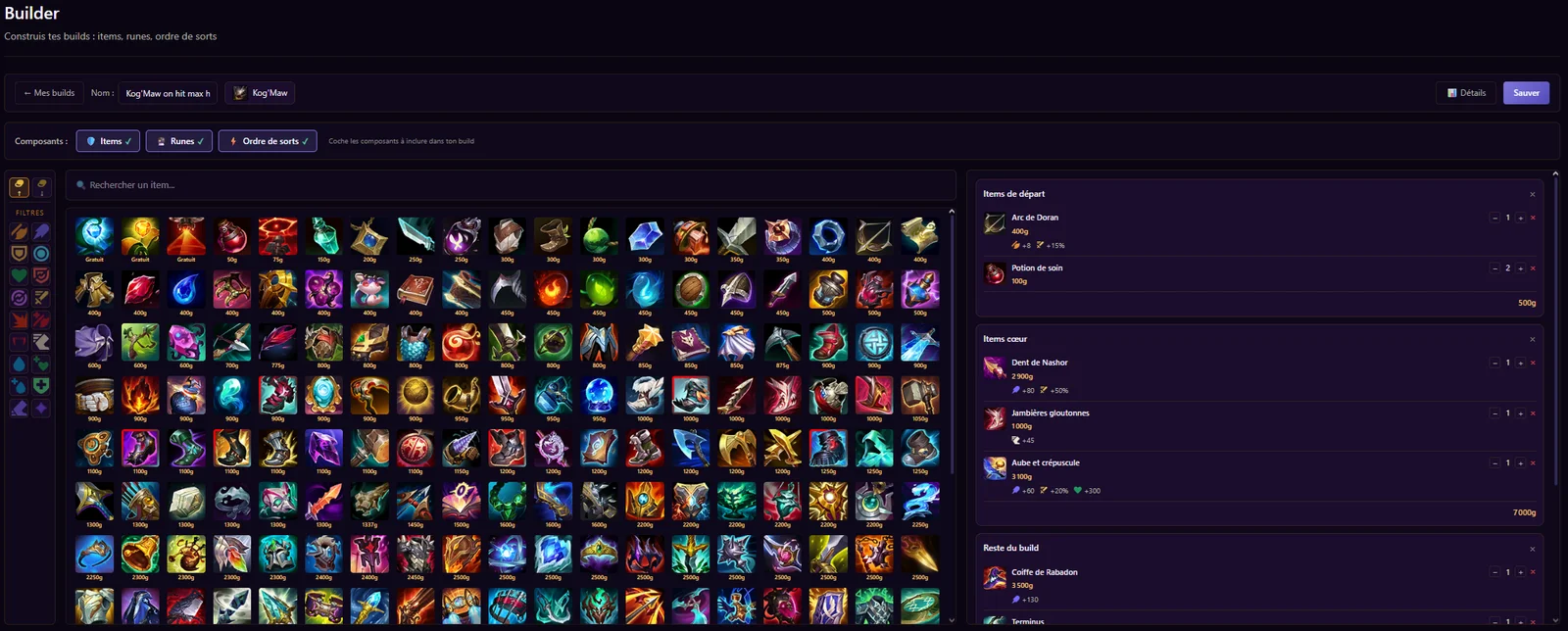
Prepare your builds for each champion — items, plus runes and skill order if you like — and find them in game.
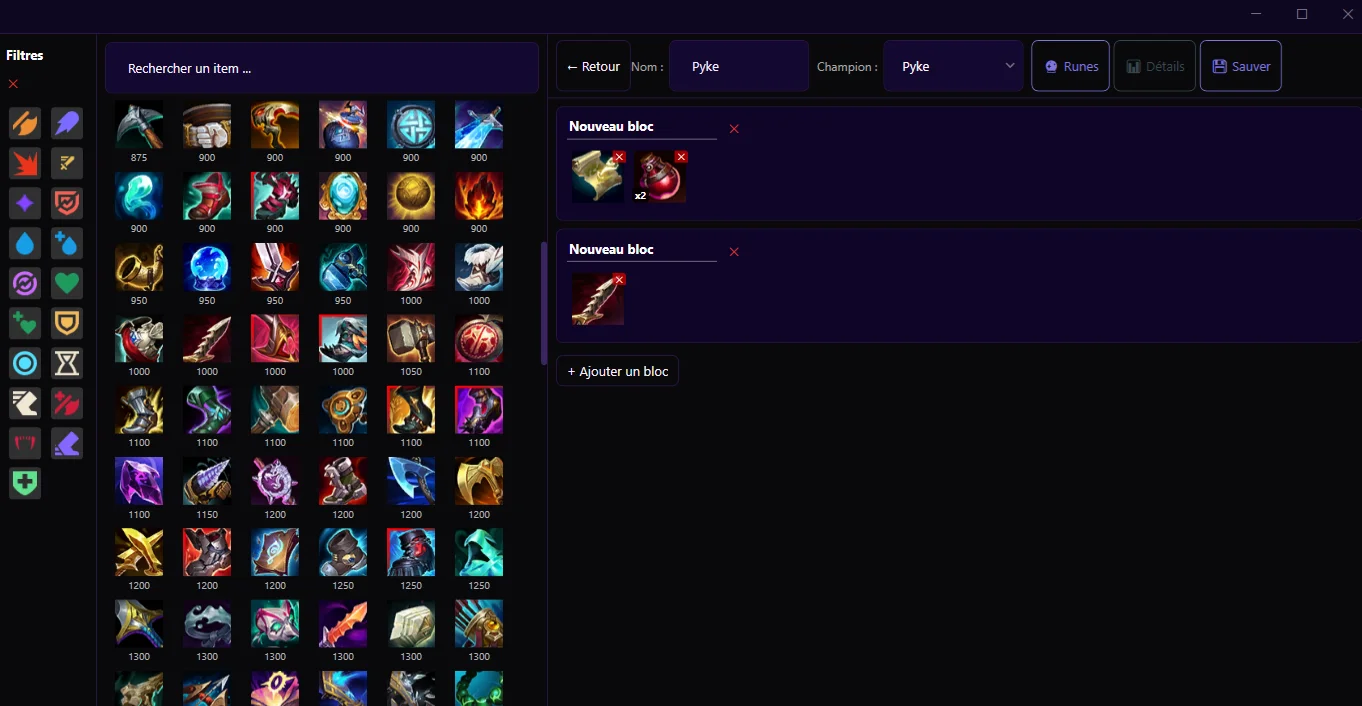
Create a build: give it a name, pick a champion, then sort your items into blocks (starting items, core items…).
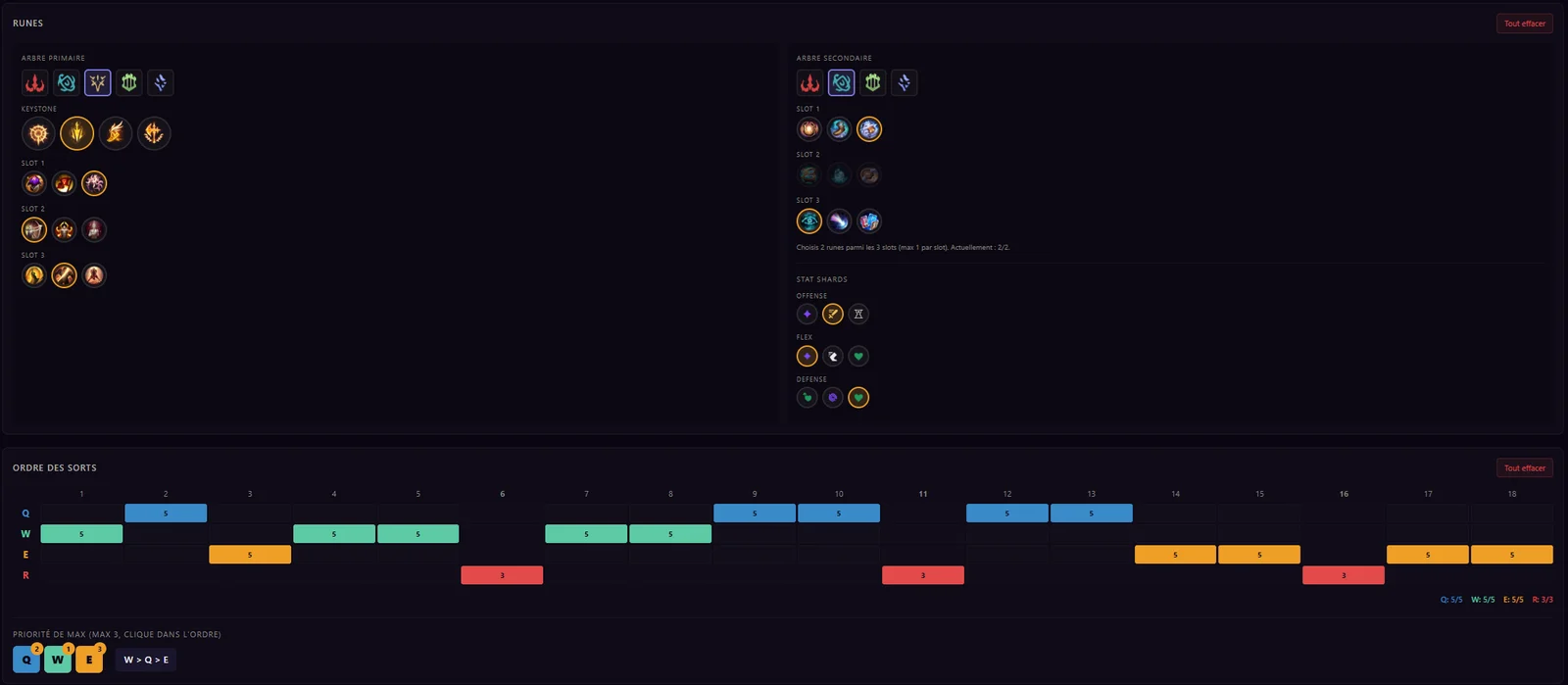
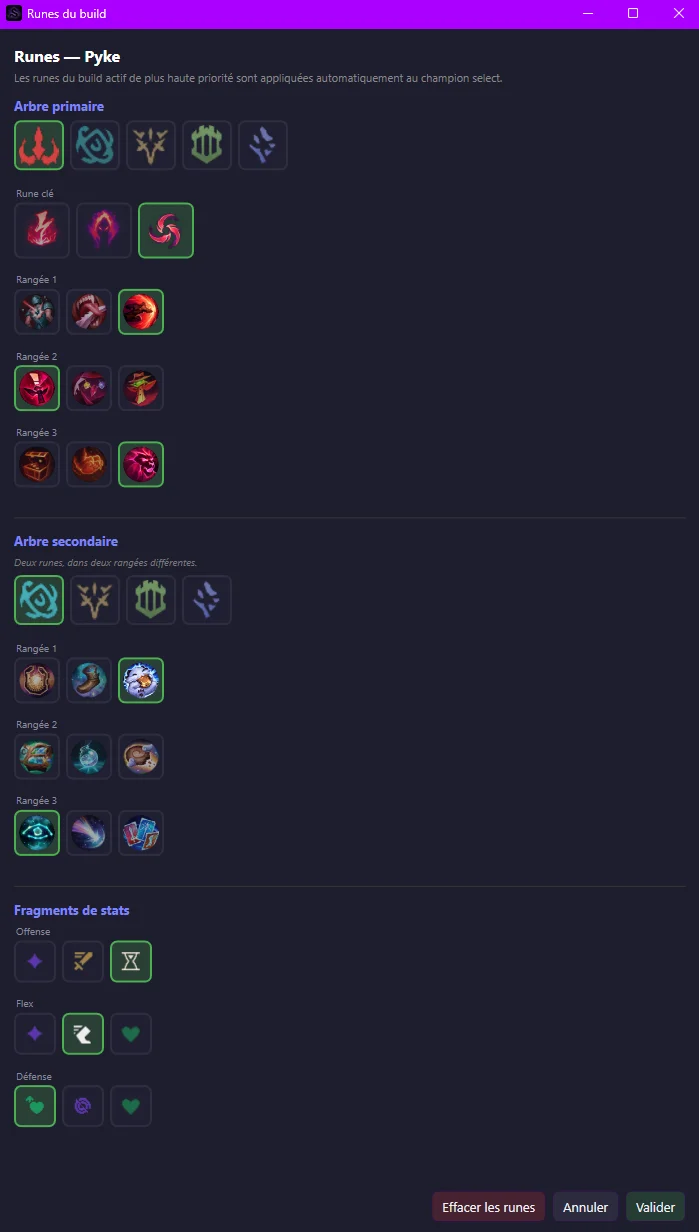
Optionally add runes: on the site, tick the components to include (items, runes, skill order); in the app, use the “🔮 Runes” button.
Builds are saved to your account: the ones made on the site show up in the app, and the other way round, as soon as you are signed in.
In the app, click “Activate” in “My builds” (“Item Builds” tab) so a build is used in game. If several builds are active for the same champion, their order (↑ ↓ arrows) decides which one comes first.
A build with no champion never shows in game: remember to pick one.
What you see in game
Active build no. 1 for the champion you play shows in the overlay (see “Your build in game”). It is also used to fill in your runes and item sets when you pick.
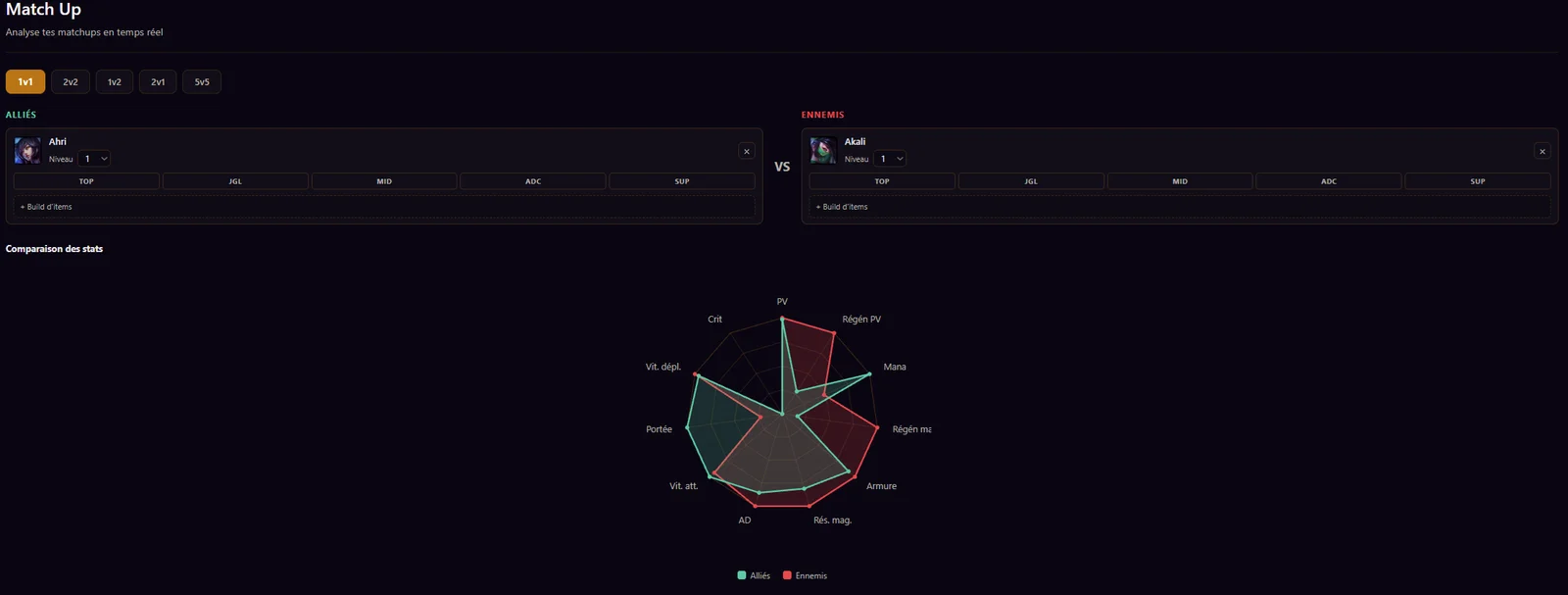
Compare your team and the enemy team champion by champion to plan how to play the game.
Where to find it
Site: dashboard → Match Up. App: “Match Up” tab.
Plan
Free (Apprentice). AI analysis uses embers of “Forge Heat”: 15 per week on Apprentice, 65 on Blacksmith, 135 on Master. Embers are shared between Match Up and AI review.
How to use it
Add champions to the allies side and to the enemies side, with their level and, if you like, a build.
The radar and the table compare the stats of both sides.
In the app, “🔍 Detect” fills both sides from your current game, and “💾 Save” keeps the match up in your list, on your PC.
Run a “Quick analysis” or a “Detailed analysis”: if your ember balance is too low, the number needed is shown. Your balance refills every week.
Click “Import the build” (sign-in required): it joins your own builds.
To share one of your builds, click “Publish” from your build list, on the site or in the app. “Unpublish” removes it from the Workshop without touching your copy.
What you see in game
An imported build works like your own: activate it in the app to see it in game.
Screenshot comingThe Workshop Builds list with the search and the “Import the build” button.
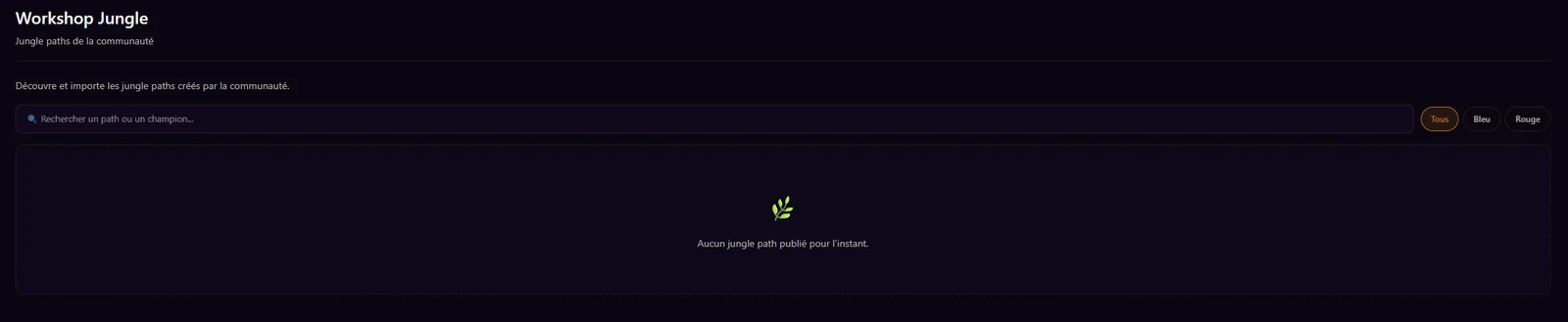
Workshop Jungle
What it is for
Discover jungle paths shared by the community and use them in the app.
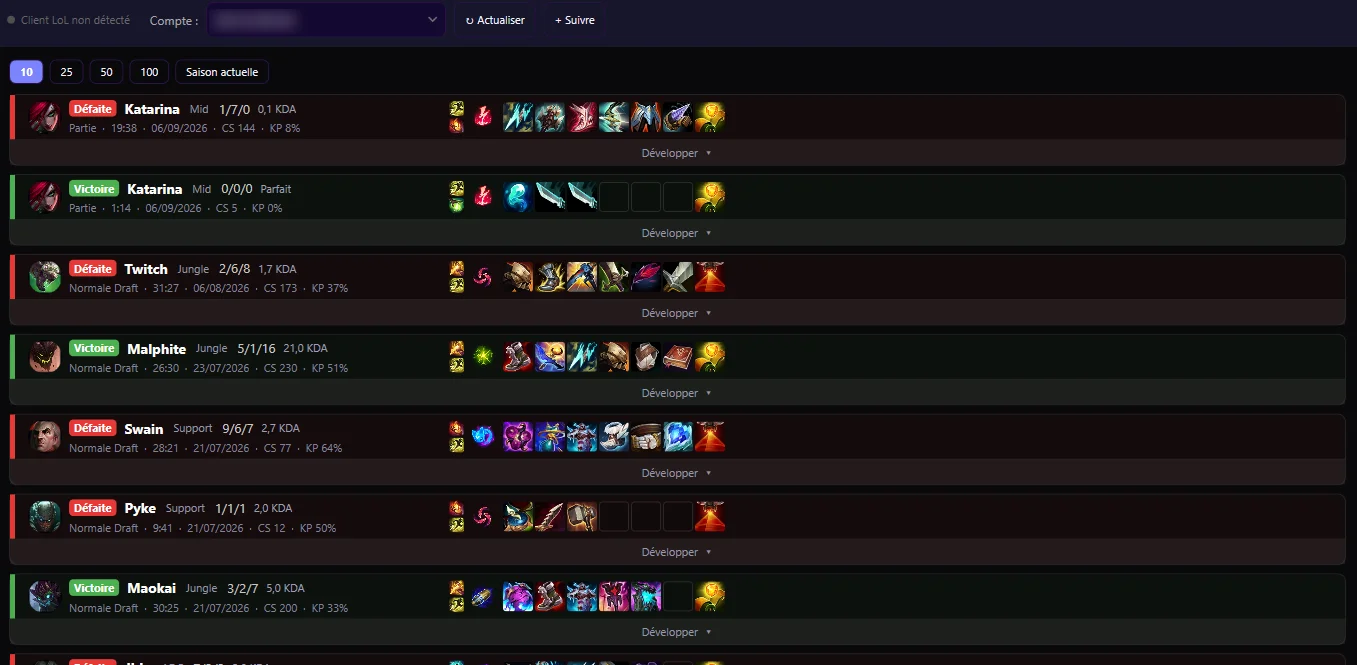
Find your recent games and the details of each one.
Where to find it
App: “Home” tab. Site: dashboard → Home (“My recent games”) and each player’s page.
Plan
Free (Apprentice)
How to use it
In the app, the “Home” tab recognises the account signed in to the League client and shows its history. With no client detected, it shows the last account viewed: the history stays visible.
The “Account:” menu lists the accounts detected on this PC and the accounts you follow; pick one to show its history. “↻ Refresh” runs the detection again and reloads the games.
“+ Follow” adds any EUW player by their Riot ID (Name#TAG) so you can view their history read-only, with no link to your account. The followed account is saved on this PC; “× Remove” takes it off the list.
Choose how many games to show (10, 25, 50, 100 or the current season). “Expand” shows a game’s details under its row; click the game to open its full page.
On the site, your history shows once your Riot account is linked (see “Link your Riot account”).
Complete quests every day to earn Scales, Wyrm Forge’s currency.
Where to find it
Site: dashboard → The Forge → “Quests”; your balance and its history are under “Balance & History”. App: “The Forge” section → “Quests” tab; your balance shows at the top of the window. You need to be signed in to your Wyrm Forge account.
Plan
Free (Apprentice)
How to use it
Each day you get three quests, for example play or win a ranked game, or open a match’s details.
LoL quests need a linked Riot account (the site’s Home tab): your match history is what confirms they are done.
Once the condition is met, click “Claim”: the Scales go to your balance, the same on the site and in the app.
Earnings are capped each day: the “x / y Scales” counter shows where you stand. Quests change every day at midnight UTC.
Complete at least one quest a day to grow your streak.
Good to know: Scales cannot be exchanged for real money.
These features are only on wyrm-forge.com, in your browser.
Link your Riot account
What it is for
Connect your Riot account to your Wyrm Forge account so the site can show your games, stats and reviews.
Where to find it
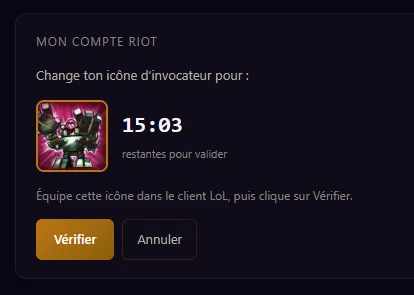
Dashboard → Home, “Mon compte Riot” (my Riot account) block.
Plan
Free (Apprentice)
How to use it
Enter your Riot ID (GameName#TAG).
The site asks you to equip a specific summoner icon: equip it in the League client, then click “Vérifier” (verify) before the time shown runs out.
Once the link is confirmed, you can put your usual icon back. “Délier” (unlink) removes the link.
Good to know: The link made on the site is not used by the app: the app recognises your account directly in the League client. This block is currently shown in French only.
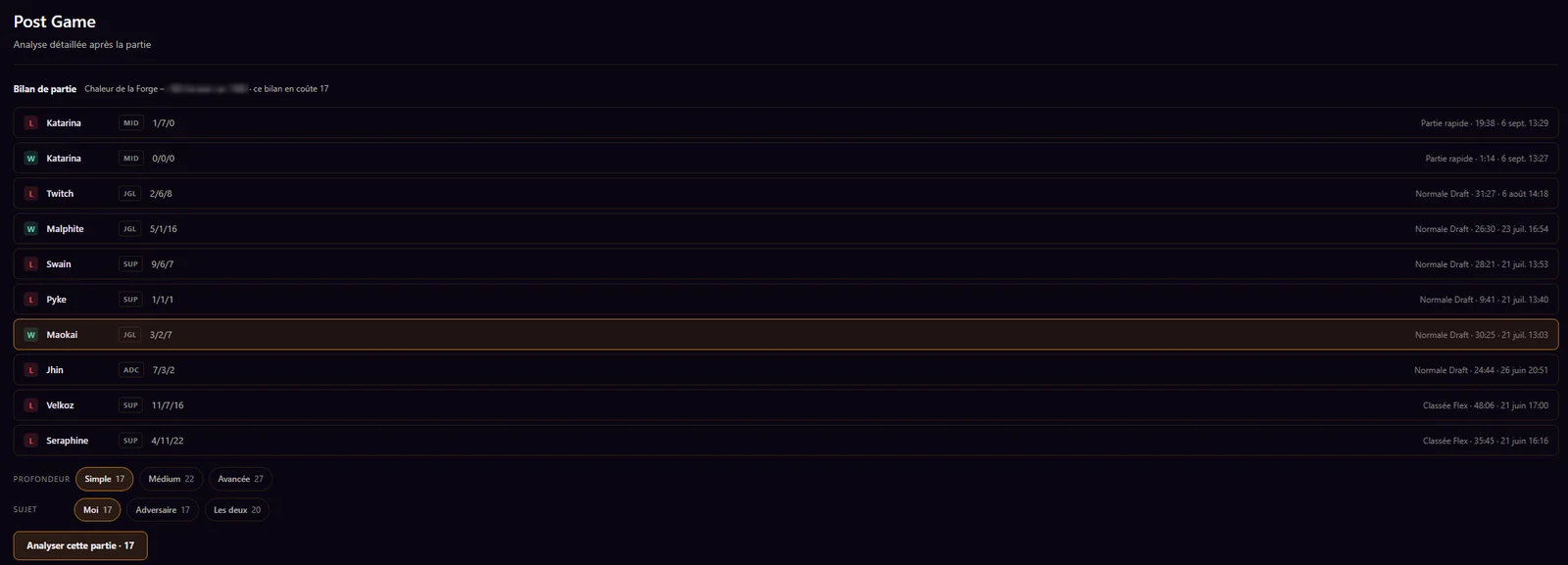
Have the AI analyse one of your recent games, about you, your lane opponent or both.
Where to find it
Dashboard → Post Game.
Plan
Free (Apprentice). AI analysis uses embers of “Forge Heat”: 15 per week on Apprentice, 65 on Blacksmith, 135 on Master. Embers are shared between Match Up and AI review.
How to use it
Link your Riot account first (see “Link your Riot account”).
Pick a game from your recent history.
Pick the depth (Simple, Medium, Advanced) and the subject (Me, Opponent, Both): the cost in embers is shown.
Click “Analyse this game”.
With no lane duel (ARAM, Arena…), only the “Me” subject is available.
Keep lists of things to work on to improve, on the site.
Where to find it
Dashboard → To-Do Lists.
Plan
Free (Apprentice)
How to use it
Create a list: a title, a description and up to 5 items.
“Set as active” marks the list you are working on right now.
Your lists update in real time if the site is open on several devices.
Good to know: Not synced between the site and the app: lists made on the site do not show in game. For a list in the overlay, create it in the app (see “In-game to-do”).
Screenshot comingThe site’s To-Do Lists tab with an active list.
Dashboard home
What it is for
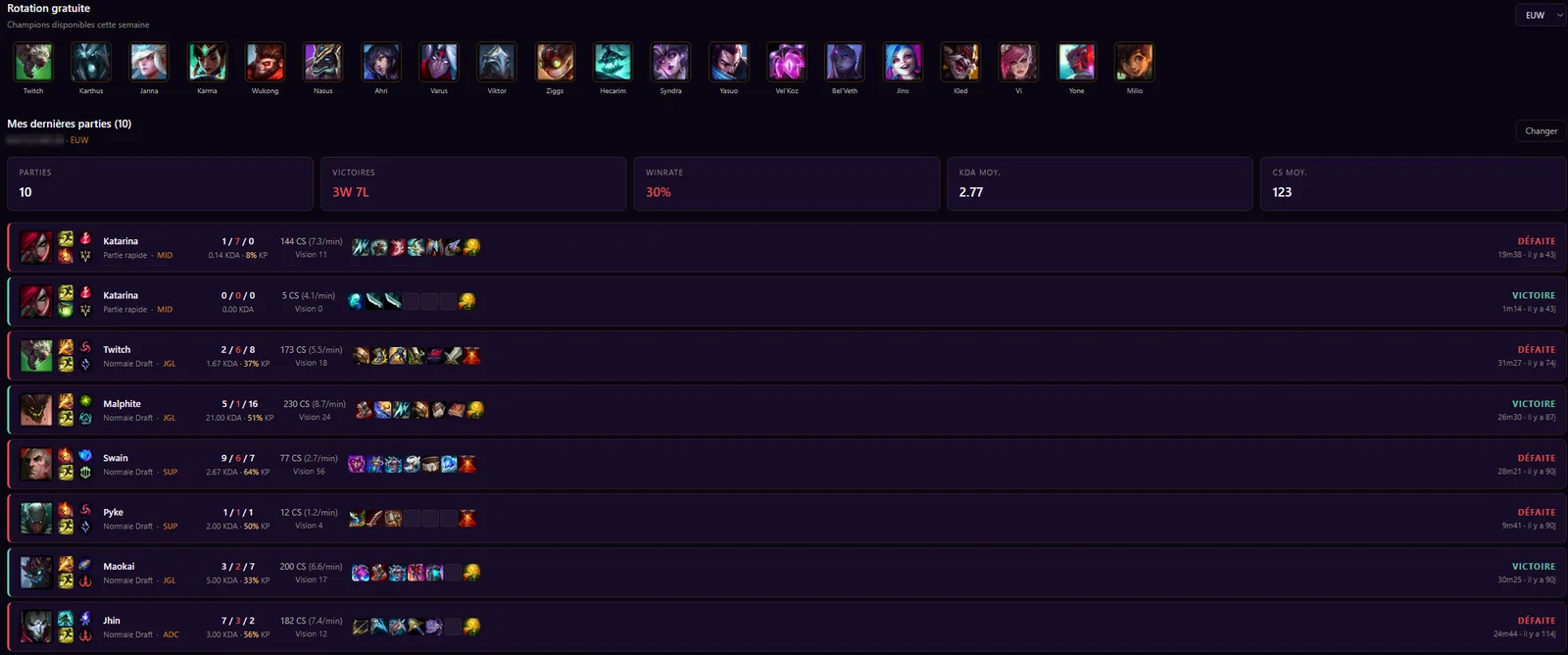
Your landing page once signed in: this week’s free rotation and your recent games.
Where to find it
Dashboard → Home.
Plan
Free (Apprentice)
How to use it
“Free champion rotation”: the champions free to play this week; switch server with the selector.
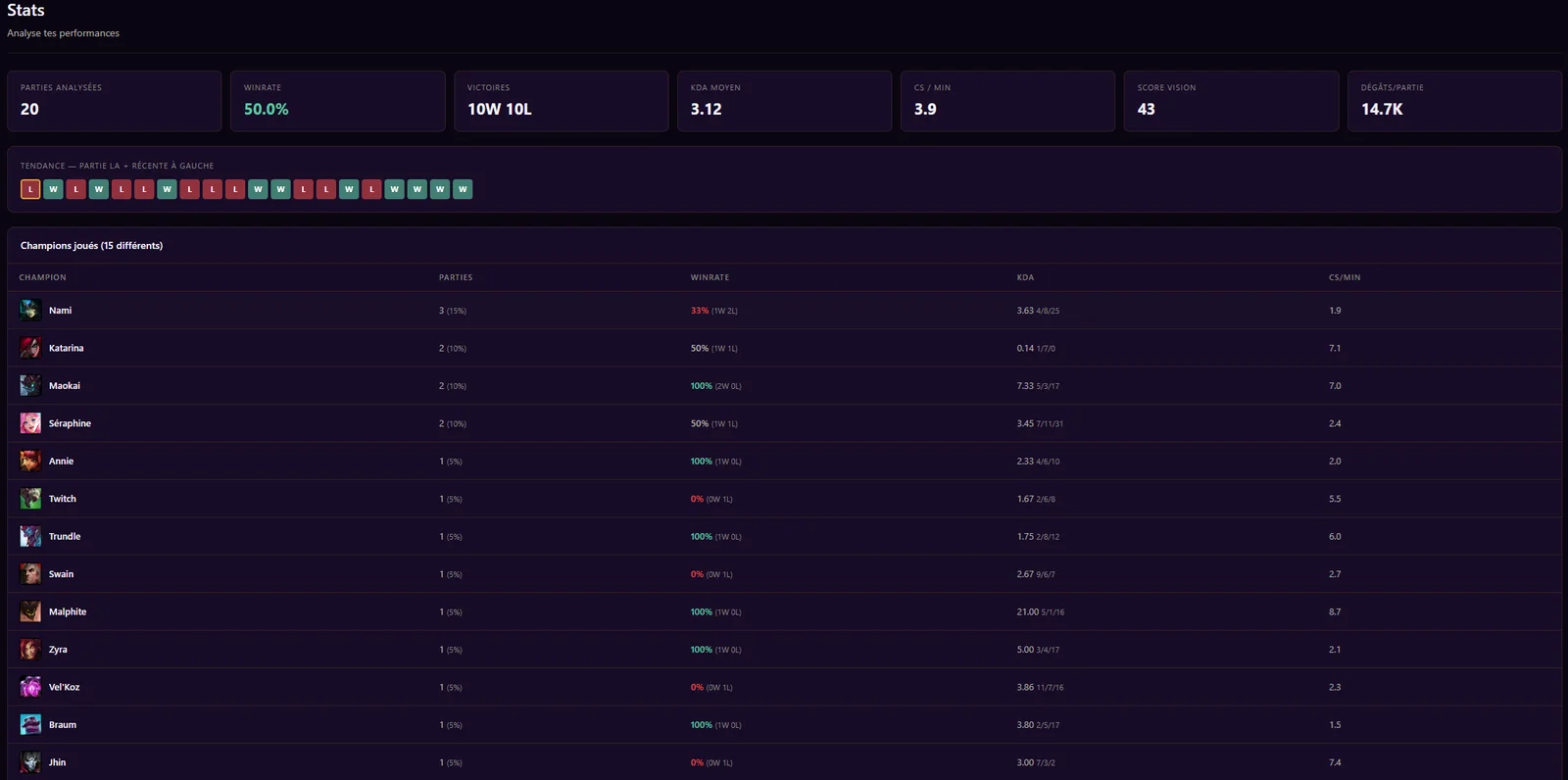
“My recent games”: your recent games with wins, winrate, average KDA and CS; load more to go further back.
“Change” lets you look at another Riot ID’s history for the rest of your visit.
The overlay shows information on top of your League of Legends game, without leaving the game.
Where to find it
App: “Overlay” tab for the settings. The overlay opens by itself in game.
Plan
Free (Apprentice)
How to use it
Start the app and leave it open: as soon as a game starts, the overlay shows up; it closes when the game ends.
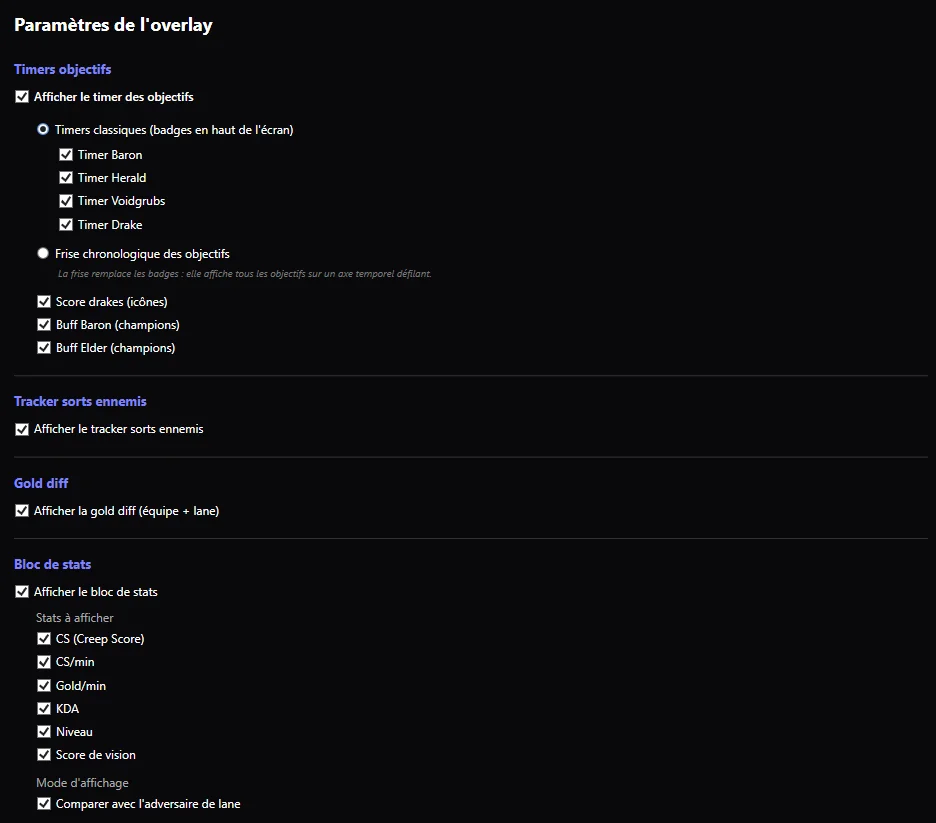
In the “Overlay” tab, tick the blocks you want to see. Each block is described below.
The overlay lets your clicks through to the game: only its buttons and the areas used to move a block react to the mouse.
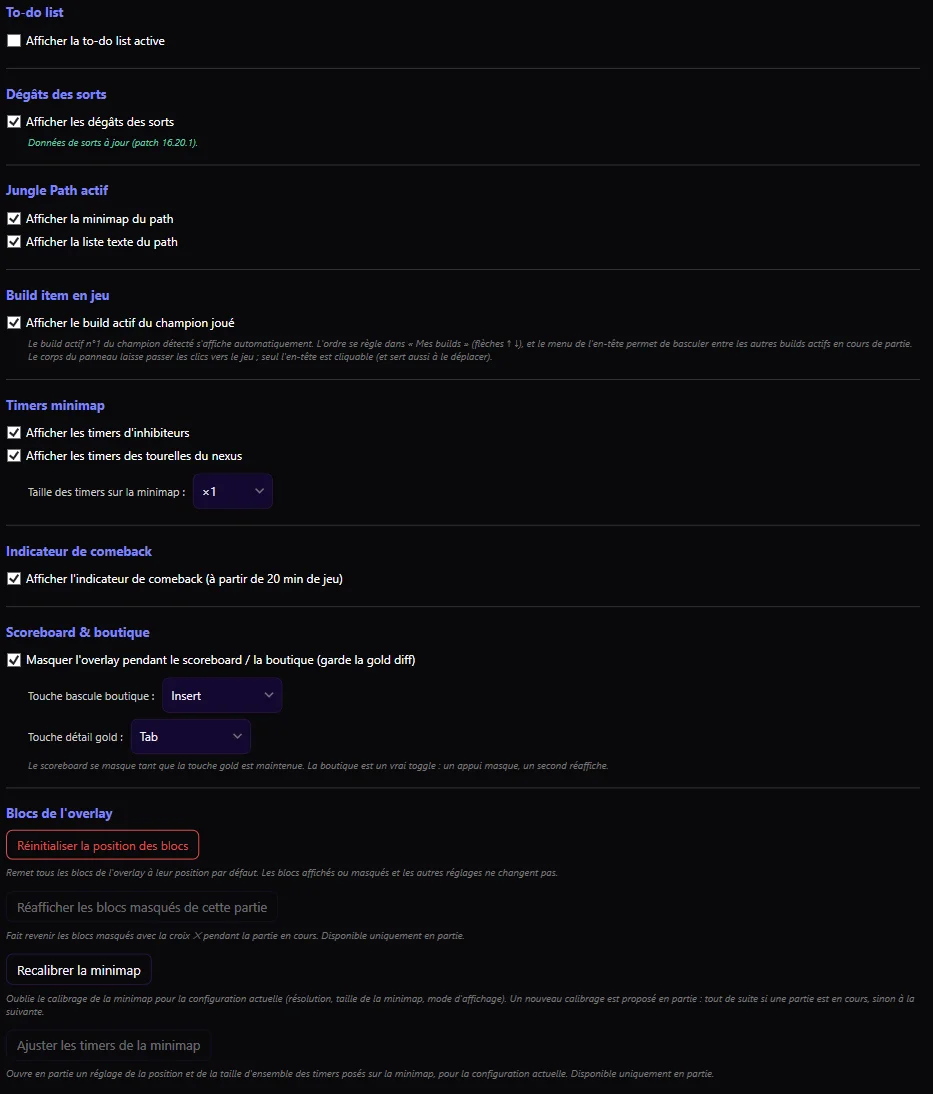
“Scoreboard & shop” section: tick “Hide the overlay during the scoreboard / the shop” so it fades away while you hold the gold detail key (Tab by default). The shop key (set in the same place) works as a toggle: one press hides the overlay, a second one brings it back. The gold diff stays visible.
“Overlay blocks” section: “Reset block positions” puts them back in their default place; “Show blocks hidden in this game” brings back the ones closed with the ✕ button; “Recalibrate the minimap” forgets the current alignment and offers a new one in game (see “Minimap alignment”); “Adjust minimap timers” sets the position and size of the timers drawn on the minimap. The “Show” and “Adjust” buttons only work in game.
An option greyed out with “Temporarily unavailable” has been switched off on our side for now.
What you see in game
A transparent layer on top of your game screen, with the blocks you ticked.
Know when Baron, Herald, Voidgrubs and Drake respawn without counting in your head.
Where to find it
“Overlay” tab → “Objective timers”.
Plan
Free (Apprentice)
How to use it
Tick “Show objective timers”, then the timers you want: Baron, Herald, Voidgrubs, Drake.
Pick the display: “Classic timers” (badges at the top of the screen) or “Objective timeline” (every objective on a scrolling time axis).
Optional: the drake score (icons), and the Baron and Elder buffs.
What you see in game
As soon as an objective is taken, a countdown shows when it respawns. The drake score shows the dragons each team has taken; the Baron and Elder buffs show which champions have them and how long is left.
Know when a destroyed inhibitor or nexus turret comes back.
Where to find it
“Overlay” tab → “Minimap timers”.
Plan
Free (Apprentice)
How to use it
Tick “Show inhibitor timers” and, if you like, “Show nexus turret timers”.
“Colors”: “Automatic” (blue = allies, red = enemies) or “By map side”, with a color and a size of your choice for each side (Order bottom-left, Chaos top-right). “Default colors” and “Default sizes” go back to the original settings.
The last 30 seconds stay yellow, whatever the color you picked.
What you see in game
A countdown shows on the minimap, where the destroyed inhibitor or turret stands.
Screenshot comingThe in-game minimap with a timer on a destroyed inhibitor.
Fighting
Enemy spell tracker
What it is for
Track the cooldowns of enemy summoner spells (Flash, Ignite…).
Where to find it
“Overlay” tab → “Enemy summoner tracker”.
Plan
Free (Apprentice)
How to use it
Tick “Show the enemy summoner tracker”.
In game, click an enemy spell’s icon when they use it: the countdown starts.
The block can be laid out horizontally or vertically.
What you see in game
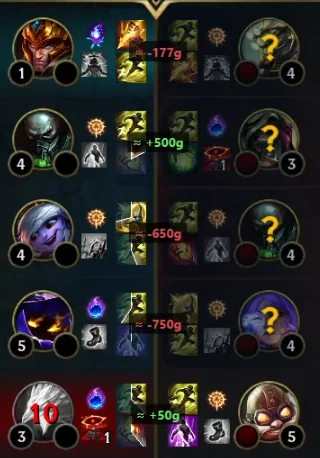
The enemy champions with their summoner spells; a marked spell shows the time left before it is available again.
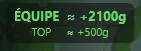
In game, hold the gold detail key (Tab by default, the same as the scoreboard) to see the gap role by role.
What you see in game
The gold gap between both teams and against your lane opponent, updated during the game; with the key held, the breakdown by role (TOP, JGL, MID, BOT, SUP).
Know whether your team can still come back, and who to focus on.
Where to find it
“Overlay” tab → “Comeback indicator”.
Plan
Free (Apprentice)
How to use it
Tick “Show the comeback indicator”.
It only shows from 20 minutes of game time.
You can move the block by dragging it.
What you see in game
The COMEBACK block shows how hard a comeback is (EASY, MEDIUM, HARD) from the gold, level and objective gaps, plus a list of priority TARGETS with the reason: “Fed carry”, “Squishy target” or “Avoid — frontline”.
Screenshot comingThe COMEBACK block after 20 minutes, with the difficulty and the target list.
Item advice
What it is for
Find the items that work against the enemy team.
Where to find it
The overlay’s 💡 “Item advice” button.
Plan
Free (Apprentice)
How to use it
In game, click the overlay’s 💡 button.
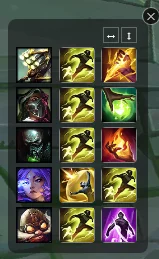
A window lists, for each enemy, the suggested items and why (anti-heal, magic resist, tenacity…).
It updates by itself every 30 seconds; “Refresh” forces an update.
What you see in game
The “Item advice” window, enemy by enemy.
Screenshot comingThe “Item advice” window open in game.
Jungle
Jungle path
What it is for
Draw your early-game path and follow it right on your minimap.
Where to find it
“Jungle Path” tab (editor); display set in the “Overlay” tab → “Active jungle path”.
Plan
Free (Apprentice)
How to use it
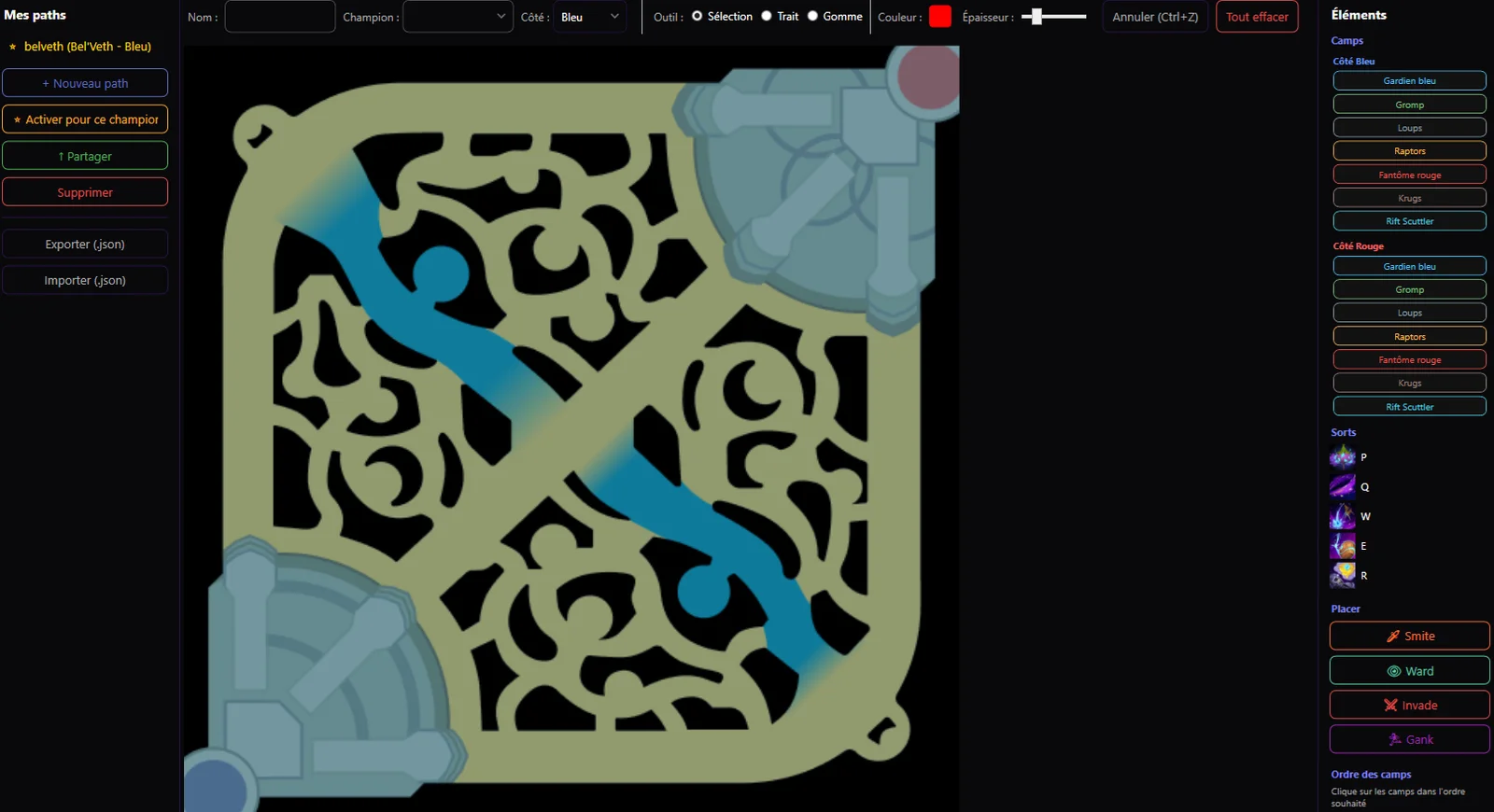
Create a path: a name, a champion and a side (blue or red).
Draw your route on the map, click the camps in the order you want and place elements (Smite, Ward, Invade, Gank).
Save, then click “⭐ Set active for this champion” (one active path per champion).
When you’re signed in to your Wyrm Forge account, your paths are saved to your account and follow you to your other PCs. Offline, they stay on this PC and sync the next time you sign in. The active path is chosen on each PC.
In the “Overlay” tab, pick the display: on the minimap, as a text list, or both.
What you see in game
During the first 4 minutes of games where you play that champion, the route shows on your minimap and the steps in a list you can move.
Line up paths and timers with your minimap, whatever your resolution.
Where to find it
Automatic, in game.
Plan
Free (Apprentice)
How to use it
Most of the time there is nothing to do: the app finds your minimap by itself.
If the “Minimap calibration” window opens, check that the dashed outline hugs the frame of your minimap, adjust with − and +, then click “That’s correct” (or “Dismiss”).
This is asked only once per configuration.
What you see in game
A dashed outline around your minimap, only when the app needs you to confirm.
Screenshot comingThe “Minimap calibration” window with the dashed outline.
Your build and tracking
Your build in game
What it is for
Keep your build in sight during the game.
Where to find it
“Overlay” tab → “In-game item build”. Your builds are set in “My builds” (“Item Builds” tab).
Plan
Free (Apprentice)
How to use it
Tick “Show the active build of the champion played”.
Active build no. 1 for the champion you play shows by itself; set the order in “My builds” (“Item Builds” tab) with the ↑ ↓ arrows.
In game, the menu in the panel’s header switches to another of your active builds. The header is also used to move the panel; the rest lets your clicks through to the game.
What you see in game
The 🛡 panel with your build’s items, block by block.
Screenshot comingThe build panel in game with the header menu open.
Stats panel
What it is for
Follow your key stats live and compare them with your lane opponent’s.
Where to find it
App: “Overlay” tab → “Stats block” section.
Plan
Free (Apprentice)
How to use it
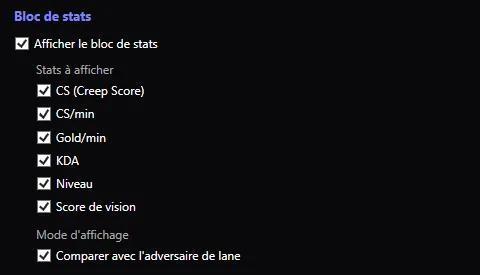
In the “Overlay” tab, “Stats block” section, tick “Show the stats block”.
Just below, under “Stats to display”, tick the ones you want to see: CS, CS/min, Gold/min, KDA, Level, Vision score.
Tick “Compare with the lane opponent” to show their figures next to yours.
These options are greyed out as long as the block itself is not shown.
In game, the ✎ badge of the STATS block opens the same choice without leaving the game: click a stat to show or hide it, then ✎ to finish. It is the same setting as in the “Overlay” tab.
What you see in game
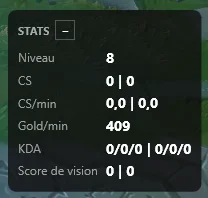
The STATS block shows your figures live and, if the comparison is ticked, your lane opponent’s, coloured depending on whether you are ahead or behind. You can move it.